Hi there,
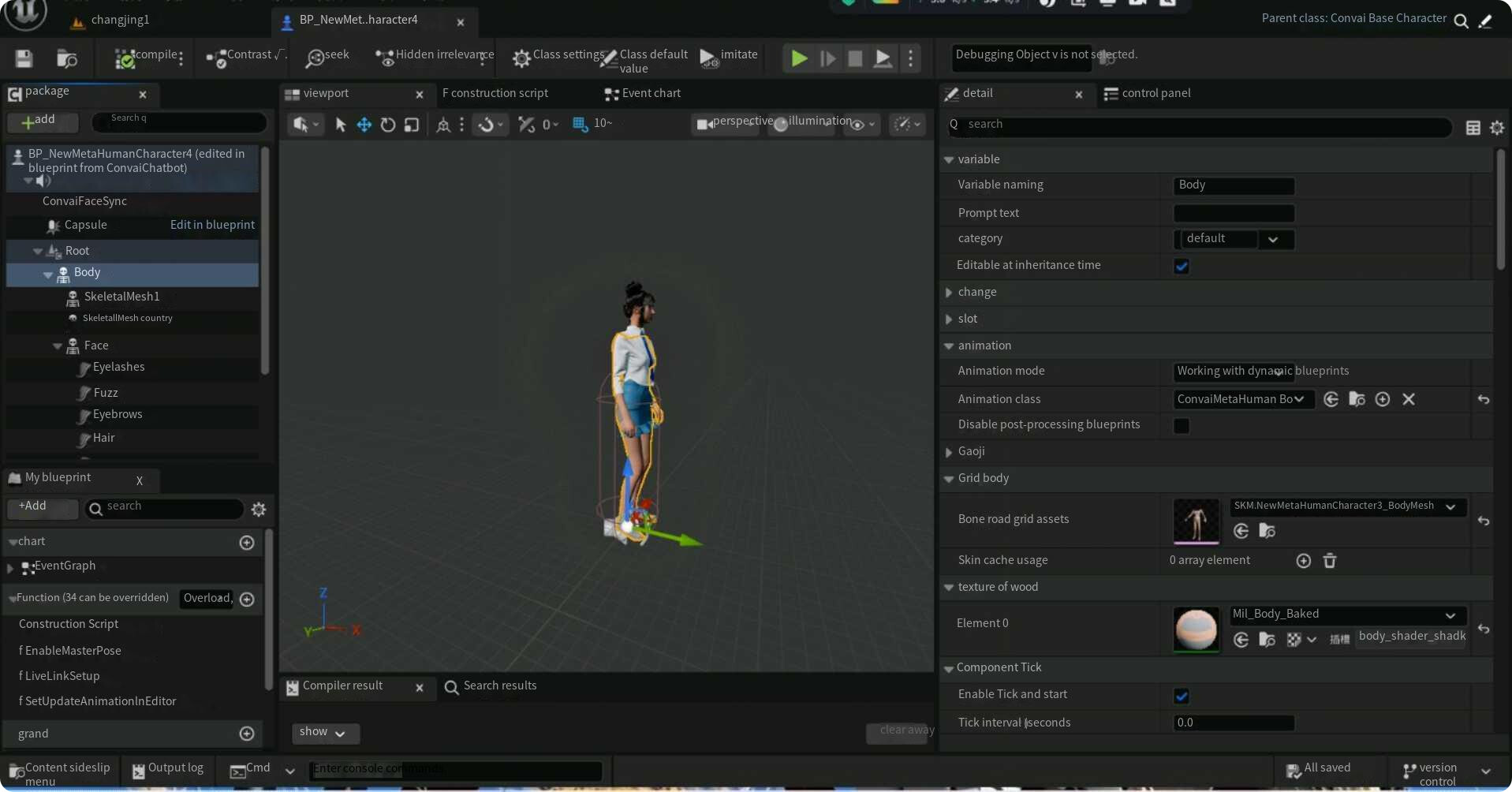
I’m a student from China. I’m using UE5.6 for my project, and I followed your tutorial step by step. However, when I run it, pressing the T key does nothing at all—there’s no dialog box popping up, no recording prompt showing, and only the character animations are playing normally. Could you please tell me what might be causing this issue?
LogSlate: Window ‘消息日志’ being destroyed
LogEOSSDK: LogEOS: Updating Product SDK Config, Time: 371.422913
LogEOSSDK: LogEOS: SDK Config Product Update Request Completed - No Change
LogEOSSDK: LogEOS: ScheduleNextSDKConfigDataUpdate - Time: 372.422821, Update Interval: 348.810089
LogUObjectHash: Compacting FUObjectHashTables data took 1.63ms
LogWorld: UWorld::CleanupWorld for World_1, bSessionEnded=true, bCleanupResources=true
LogSlate: InvalidateAllWidgets triggered. All widgets were invalidated
LogWorld: UWorld::CleanupWorld for World_2, bSessionEnded=true, bCleanupResources=true
LogSlate: InvalidateAllWidgets triggered. All widgets were invalidated
LogWorld: UWorld::CleanupWorld for World_3, bSessionEnded=true, bCleanupResources=true
LogSlate: InvalidateAllWidgets triggered. All widgets were invalidated
LogUObjectHash: Compacting FUObjectHashTables data took 1.50ms
LogDebuggerCommands: Repeating last play command: 选中的视口
LogPlayLevel: PlayLevel: No blueprints needed recompiling
LogPlayLevel: Display: Creating online subsystem for client :Context_8
LogOnline: OSS: Created online subsystem instance for: :Context_8
LogPlayLevel: Creating play world package: /Game/UEDPIE_0_changjing1
LogPlayLevel: PIE: StaticDuplicateObject took: (0.012324s)
LogPlayLevel: PIE: Created PIE world by copying editor world from /Game/changjing1.changjing1 to /Game/UEDPIE_0_changjing1.changjing1 (0.012425s)
LogUObjectHash: Compacting FUObjectHashTables data took 1.32ms
ConvaiSubsystemLog: gRPC Creating Channel…
ConvaiSubsystemLog: Start Run
ConvaiSubsystemLog: UConvaiSubsystem Started
LogChaosDD: Creating Chaos Debug Draw Scene for world changjing1
LogPlayLevel: PIE: World Init took: (0.011459s)
LogAudio: Display: Creating Audio Device: Id: 2, Scope: Unique, Realtime: True
LogAudioMixer: Display: Audio Mixer Platform Settings:
LogAudioMixer: Display: Sample Rate: 48000
LogAudioMixer: Display: Callback Buffer Frame Size Requested: 1024
LogAudioMixer: Display: Callback Buffer Frame Size To Use: 1024
LogAudioMixer: Display: Number of buffers to queue: 1
LogAudioMixer: Display: Max Channels (voices): 32
LogAudioMixer: Display: Number of Async Source Workers: 4
LogAudio: Display: AudioDevice MaxSources: 32
LogAudio: Display: Audio Spatialization Plugin: None (built-in).
LogAudio: Display: Audio Reverb Plugin: None (built-in).
LogAudio: Display: Audio Occlusion Plugin: None (built-in).
LogAudioMixer: Display: Initializing audio mixer using platform API: ‘XAudio2’
LogAudioMixer: Display: Using Audio Hardware Device 扬声器 (2- Realtek(R) Audio)
LogAudioMixer: Display: Initializing Sound Submixes…
LogAudioMixer: Display: Creating Master Submix ‘MasterSubmixDefault’
LogAudioMixer: Display: Creating Master Submix ‘MasterReverbSubmixDefault’
LogAudioMixer: FMixerPlatformXAudio2::StartAudioStream() called. InstanceID=2
LogAudioMixer: Display: Output buffers initialized: Frames=1024, Channels=2, Samples=2048, InstanceID=2
LogAudioMixer: Display: Starting AudioMixerPlatformInterface::RunInternal(), InstanceID=2
LogAudioMixer: Display: FMixerPlatformXAudio2::SubmitBuffer() called for the first time. InstanceID=2
LogInit: FAudioDevice initialized with ID 2.
LogAudio: Display: Audio Device (ID: 2) registered with world ‘changjing1’.
LogAudioMixer: Initializing Audio Bus Subsystem for audio device with ID 2
LogLoad: Game class is ‘BP_FirstPersonGameMode_C’
LogWorld: Bringing World /Game/UEDPIE_0_changjing1.changjing1 up for play (max tick rate 60) at 2025.12.17-13.29.01
LogWorld: Bringing up level for play took: 0.041987
PIE: 登陆的服务器
PIE: PIE总开始时间:0.315秒。
LogSlate: Updating window title bar state: overlay mode, drag disabled, window buttons hidden, title bar hidden
LogWorld: BeginTearingDown for /Game/UEDPIE_0_changjing1
ConvaiSubsystemLog: UConvaiSubsystem Stopped
ConvaiSubsystemLog: End Run
LogWorld: UWorld::CleanupWorld for changjing1, bSessionEnded=true, bCleanupResources=true
LogSlate: InvalidateAllWidgets triggered. All widgets were invalidated
LogPlayLevel: Display: Shutting down PIE online subsystems
LogSlate: InvalidateAllWidgets triggered. All widgets were invalidated
LogSlate: Updating window title bar state: overlay mode, drag disabled, window buttons hidden, title bar hidden
ConvaiChatbotComponentLog: Cleanup | Character ID : 10d12e30-dae8-11f0-bbab-42010a7be027 | Session ID : -1
LogAudioMixer: Deinitializing Audio Bus Subsystem for audio device with ID 2
LogAudioMixer: Display: FMixerPlatformXAudio2::StopAudioStream() called. InstanceID=2, StreamState=4
LogAudioMixer: Display: FMixerPlatformXAudio2::StopAudioStream() called. InstanceID=2, StreamState=2
LogUObjectHash: Compacting FUObjectHashTables data took 2.06ms
LogPlayLevel: Display: Destroying online subsystem :Context_8